Your Sim is about to leave for work. Their energy bar is empty, the kitchen is on fire, and you can’t remember the cheat you need. Opening a command box now feels like one more task on a very bad morning.
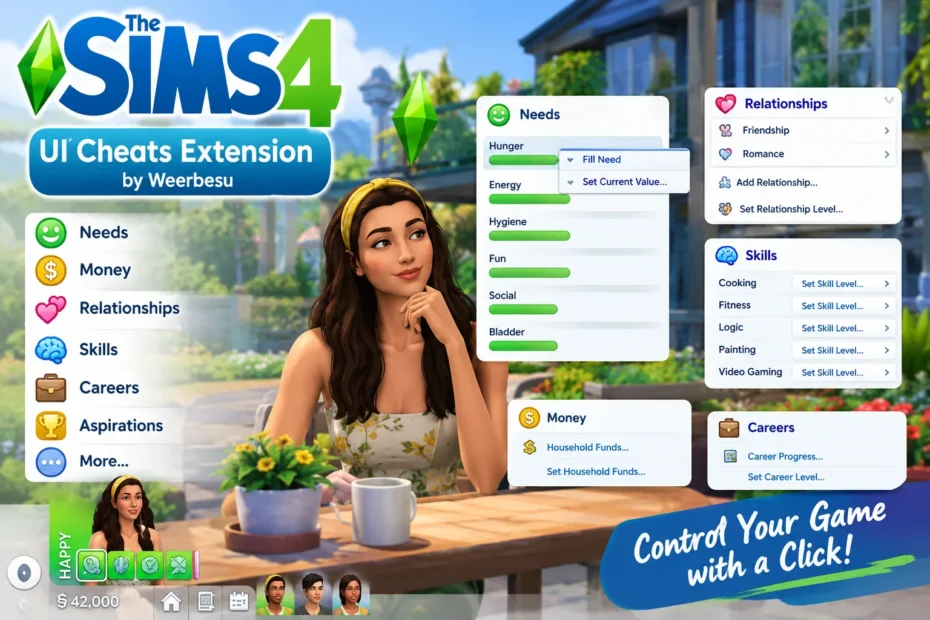
UI Cheats Sims 4 offers a quicker way through that mess. Weerbesu’s UI Cheats Extension lets you change many game values through the panels already on your screen. You can work with needs, household money, skills, and more without hunting for a console command each time.
This guide explains where to get the mod, how to install it, which controls to try first, and what to check when an EA update stops it from working. One important note for 2026: compatibility can change with any game patch, so always check the creator’s latest release notes before you download.
What does the UI Cheats Extension mod actually do?
Direct Answer: The UI Cheats Sims 4 mod makes supported parts of the game’s interface clickable, so you can change values where you already see them.
Think of the needs panel. It shows you that your Sim is exhausted, but the unmodded panel does not let you fix the bar with a click. UI Cheats Extension adds that control to the interface. You look at the problem, use the nearby control, and return to playing. No need to interrupt a wedding just to remember how a long command is spelled.
The mod is useful, but it is not an official EA feature or a replacement for every cheat. Some actions still need a console command or another tool. The controls available to you may also depend on the mod version, the game patch, and the panel you have open.
Here is the practical difference:
| What you want to do | With UI Cheats Extension | Without the mod |
| Raise a low need | Use the supported need-bar control | Use gameplay or a console cheat |
| Set household funds | Edit the money display | Enter a money cheat |
| Change a visible skill | Use its skill-panel control | Find and type the matching command |
There is room for other tools, too. Deaderpool’s MC Command Center (MCCC) offers broad menu-based controls. Weerbesu’s mod is more focused on quick edits inside the game UI. A beginner may prefer the visible bar; a player managing a detailed save may use both. Neither tool needs a made-up “best for everyone” award.
Key Takeaway
- The mod adds shortcuts to existing game panels; it does not replace the entire interface.
- It handles many everyday edits, but it does not cover every possible cheat.
UI Cheats Extension saves time by putting common changes next to the values you want to change.
Where can you download UI Cheats Sims 4 safely in 2026?
A search for a UI Cheats Sims 4 download can lead to old files, copies hosted by strangers, and pages that hide the real download behind several buttons. The problem is not just security. An outdated script mod may fail after a game update, even if the file itself is genuine.
Use this short check before downloading:
- Confirm the author. Look for Weerbesu, not a page that merely uses the mod’s name in its title.
- Read the release notes. Check for a statement about the game version or patch the download supports.
- Compare it with your game. You can check your Sims 4 version from the game’s main menu. Do not assume an older file works because it loaded last month.
- Inspect the download. Expect mod files or an archive containing them. You should not need to run an unrelated .exe installer to place a script mod in your Mods folder.
If you are searching how to download UI Cheats Sims 4, the most useful habit is simple: follow the author’s current instructions, not the date on a search result. A result labeled “2026” can still point to an older file. I cannot verify the latest compatible release from this article alone, and a responsible guide should not invent a version number.
Before installing a new mod, copy your saves folder somewhere safe. You probably will not need the backup. That is the whole point of making one.
Suggested visual: Show the creator name and release notes on the download page. Add a small callout reminding readers to compare the mod’s compatibility notes with their game version.
How do you install UI Cheats Extension on Windows or Mac?
Direct Answer: Copy the extracted mod files into your Sims 4 Mods folder, enable custom content and script mods, then restart the game.
The job is less technical than it sounds. You are putting files in the folder The Sims 4 uses for mods. The easy-to-miss parts are the file type, the folder depth, and the two settings in the game.
Follow these installation steps
- Close The Sims 4. Moving script files while the game is running makes it harder to tell which version loaded.
- Find your user-data folder. On Windows and Mac, the usual location is Documents/Electronic Arts/The Sims 4/Mods. If Windows redirects your Documents folder through OneDrive, check its synced Documents location instead.
- Open the download if it is a .zip archive. Move the included .ts4script file—and any .package file supplied with that release—into Mods. If the download is already a .ts4script file, leave that file intact.
- Keep the script easy to find. Put it directly in Mods, or at most one folder below it. Do not bury it in several nested folders.
- Remove an older copy. Search your Mods folder for previous UI Cheats Extension files and keep only the version you mean to use.
- Turn on the game settings. In The Sims 4, open Game Options > Other. Enable Custom Content and Mods and Script Mods Allowed, then apply the changes.
- Restart and test. Open a household in live mode and try a supported UI control, such as a need bar.
If the mod does not appear to work, check the folder before downloading it again. The game does not read a script you left in Downloads, and it cannot use a .zip archive that you forgot to extract. Also, do not place the mod in the game’s application or installation directory. Its home is the Sims 4 folder under Documents.
EA may switch mods off after a game update. When that happens, first confirm that Weerbesu has marked the mod as compatible. Then re-enable the settings and restart. Turning scripts back on without that check can leave you guessing about the cause of an error.
Suggested visual: Use one screenshot of the Mods folder showing the script file, beside another of the two settings under Game Options > Other. Label the folder path in plain text.
Key Takeaway
- Extract the downloaded archive, but do not unpack the .ts4script file itself.
- Enable both mod settings and restart before testing.
A correctly placed script file and enabled game settings are the two essentials of installation.
How do you use UI Cheats Sims 4 for needs, money, and skills?
Direct Answer: Open the panel that shows the value you want to change, then use its supported mouse control—often a right-click—to make the edit.
Start with one small change. Open the needs panel and try a need bar. On supported versions, clicking a point on the bar may set its value, while right-clicking may offer a way to enter an exact value. Controls are not identical across every panel, so use Weerbesu’s notes for your installed release if a click does something unexpected. On a Mac trackpad, you may need to enable secondary click or use your usual right-click gesture.
These are the places most players will want to explore:
- Needs: Use the needs panel to raise or lower a visible motive. This is the quick route when you need to modify Sim needs instantly before work, school, or a social event.
- Household funds: Try the money display to change household funds to a specific amount. Note your starting balance first if you may want to undo the change.
- Skills: Open the skill panel and use a visible skill control to edit Sim skill levels. A skill that has not appeared in the panel may not give you a UI target yet.
- Relationships: Use supported controls in the relationship panel to adjust friendship and romance levels. The game’s own relationship rules still matter; not every relationship can become romantic.
- Careers: Check the career panel for supported ways to manage career progress, performance, or tasks. Which controls are available can vary by career and mod release.
- Aspirations: Look at the aspiration panel for supported goal controls. This can help control aspiration progress when you are setting up a story or correcting a milestone.
You do not need to change all six at once. Picture a save where two friends have fallen out, but your planned story depends on them attending a party together. Adjust their relationship, play the scene, and see whether the result fits. That is an example of using the mod to support a story—not a claim that it fixes every relationship bug.
Try this first-use checklist
- Save your game under a new name. Keep your original save untouched while you learn the controls.
- Change one visible need. Confirm that the result appears in the bar before trying another panel.
- Test a second control. Try funds or a visible skill, then check that the new value is what you intended.
- Read the current release notes. Use them when a control differs from a guide or older video.
Here is one myth worth dropping: the mod does not turn every bit of text on the screen into a cheat button. It gives specific UI elements extra functions. You will still find jobs better suited to gameplay, another mod, or the cheat console.
Suggested visual: Show the needs, funds, and skills areas on one live-mode screenshot. Use arrows to mark the UI targets, but do not label an action “left-click” or “right-click” unless it matches the release pictured.
Key Takeaway
- Begin with a low-risk change and confirm the result before making several edits.
- Use the creator’s instructions when a panel’s click controls differ from what you expected.
The best way to learn the mod is to change one visible value, check it, and build from there.
Why did UI Cheats stop working after a Sims 4 update?
Direct Answer: An EA patch can disable script mods or make an older UI Cheats Extension release incompatible with the updated game.
This is the part that catches careful players, too. Yesterday’s working setup does not prove that today’s script will load. EA Help provides guidance on mods and game updates, while Weerbesu’s release notes are the place to check this mod’s compatibility. There is no reliable rule that a UI Cheats Sims 4 update will arrive a set number of hours after an EA patch.
Work through the problem in this order:
- Check the game settings. Make sure Custom Content and Mods and Script Mods Allowed are still enabled. Restart if you change them.
- Check the creator’s latest release notes. Compare the supported game patch with the version you have installed.
- Remove old copies. Two versions of the same script in different folders can make troubleshooting miserable.
- Replace the file if needed. Close the game, remove the old mod files, and install the compatible release.
- Clear the cache. With the game closed, delete localthumbcache.package from Documents/Electronic Arts/The Sims 4. The game can create it again.
- Test with fewer mods. If the issue remains, temporarily move other script mods out of Mods and check UI Cheats Extension by itself.
| What you see | Check first |
| Clicks do nothing | Script-mod settings and mod file location |
| The mod worked before a patch | Creator compatibility notes and installed version |
| Errors started after adding mods | Duplicate files or another script-mod conflict |
| A menu works, but one edit does not | Whether that control is supported in this release |
A popular shortcut is to blame MC Command Center whenever both mods are installed. That is not a diagnosis. Test the files separately before deciding they conflict. Equally, do not overwrite an important save while troubleshooting with your usual mods missing.
References
- Weerbesu on Patreon — creator posts, downloads, and release notes for UI Cheats Extension.
- EA Help — official support; search for The Sims 4 mods and game updates for current guidance.
- CurseForge: The Sims 4 Mods — mod listings; verify the listed creator before downloading.
- EA: The Sims 4 — official game information and links to EA updates.